Showing posts with label review. Show all posts

Tuesday, 5 April 2016

Elgato HD60 S Review

Some months ago I was wondering if Elgato was ever going to tackle an external USB3 card, I got my answer some weeks later. I've had the card for about 5 weeks now, enough time to give a good insight into it.
So what exactly is the HD60 S? Well to put it in simple terms, it's an external Elgato HD60 Pro that I recently reviewed. It's really great for the laptop market or for those who own a desktop but don't want to fiddle about with internal installation.

The build quality feels really nice and what you would expect from Elgato. It's slightly smaller than the original Game Capture HD design and seems equal to the original HD60.

System Requirements

I want to quickly discuss the official system requirements from Elgato as there are two main points I want to talk about.

PC: Windows 10 (64-bit)
4th generation quad‑core Intel Core i5 CPU (i5-4xxx or comparable)
Intel HD or NVIDIA GeForce 600 series graphics (or better)
4 GB RAM, built-in USB 3.0 port

Those are not particularly high specifications for most systems these days but they are still modest. The reason for this is the HD60 S does not feature an on board H.264 encoder like the HD60 Pro so the encoding is done on your system.

Some people might be confused about the OS compatibility. Windows 10 is preferred but it will also work fine on 8.1 and 7. In fact I was using 8.1 so don't feel like you need Windows 10 to use the card.

Software and video quality

The Game Capture software hasn't changed much from the HD60 Pro, solid and steady as ever with the HD60 S. It's just simple and easy to understand that will take you maybe 10 or 15 minutes to get the hang of.

One thing I found interesting is that they chose to change the maximum bit rate to 40Mbps when the Pro was 60. They probably did this due to on board encoding as discussed previously.


Like other Elgato cards, you are still stuck with YV12 (4:2:0) capture but this really doesn't mean much when most media you create is streamed in YV12 or converted to YV12 by YouTube anyway. If you really want YUY2 (4:2:2), you would need to look into using the DirectShow driver described below. Here is a 1080p60 40Mbps sample from the Elgato software for your viewing pleasure.

Although the card is basically made for 1080p60, they have not forgot about other common resolutions. The HD60 S officially supports 1080p60, 1080p30, 1080i, 720p60, 720p30, 576p, 576i and 480p.

One really cool change in the software since 3.10.65 has been the non splitting of .ts files once the file size hit 4GB. I should note that file splitting still occurs if you use flashback recording.

The HD60 S also has support for Elgato Sound Capture and you know how much I love that.

Drivers and OBS/XSplit Compatibility

Like the HD60 Pro, Elgato is supplying two drivers for the HD60 S. One is tailor made to add functionality on a product by product basis and the other is a run of the mill DirectShow driver that unlocks the YUY2 functionality as described above. I see no reason to use the DirectShow driver as the one they bundle with the Game Capture software will work with OBS and XSplit anyway. You would only really be missing out on AmaRecTV support.

As of writing, the HD60 S comes fully working with OBS using either driver. However, XSplit will require an update to be used with the non DirectShow driver. If you require immediate access to the HD60 S in XSplit, I recommend you install the DirectShow driver by clicking here. I'll update this when XSplit has rolled out support for it.

Click to enlarge
USB3 Bandwidth and Preview Latency

The HD60 S seems to be using the CY3014 USB3 chipset and I'm glad they did. It has shown how stable it is at processing 1080p60 video on other cards using the same chipset (XCAPTURE-1 and the USB3HDCAP). It was a good decision to keep it and not go down the road of other devices plagued by issues such as the Intensity Shuttle.


Due to this, preview latency is kept as low as most internal cards. For my Asus laptop, it seems to be always 2 frames and should be fine to play from. Of course this number depends on your system so it might be 3-4 frames on slower systems or closer to 1 on high end rigs. You definitely won't need to fiddle with microphone offset that's for sure.

Conclusions

A shorter review than normal but that's my style with reviews. I want to give a quick description of the product and then highlight any key points or things I think need improved. The fact this review is short shows how good the card is. If you do consider buying this, you are getting exactly what you pay for. A USB3 external card capable of easily capturing 1080p60 video and anything in between. 

Friday, 22 January 2016

Elgato HD60 Pro Review

I've been wanting to review this for quite awhile and thanks to the kind folks at Elgato, I was supplied a review unit.

Originally when this was announced, I was pretty sceptical about a card that only accepted HDMI. I found it very weird that they dropped Composite/S-Video/Component support from the original Game Capture HD design.

After having time to reflect on it, I think Elgato has chosen wisely. The future is HDMI and this card is meant to cater to that. Recently I've been getting into PC and PS4 gaming so keeping around older consoles like a Super Nintendo doesn't mean much any more. Time to move on and embrace the new! Eventually some hardware based solution that doesn't suck (Retron 5 etc) will come out and we can all enjoy the glory of HDMI even with our older games.

Packaging and contents


Elgato have gone with a similar packaging design to the original Game Capture HD and who can fault them. It looks really nice and is very practical. Inside is the capture card itself, an Elgato Gaming case badge, a mini PC bracket and at the back is a HDMI cable.

I personally like the approach of not supplying driver CDs with computer products. They are almost always out of date and pointing the user to grab the latest from the internet is always the way to go. The card is surprisingly small compared to other cards I've used. It's basically nearly half the length of the SC-512 and it should have no issue fitting into any case.

The build quality is also really solid and sturdy. You can tell they really put care and effort into this card. I like that they label the input and output ports very clearly. Too often have I stumbled with this on other capture cards and been scratching my head for a minute or two as to why I don't have a signal (I'm looking at you Blackmagic).

Software installation, usage and owning a capture card, worth it?

The latest drivers and software can be downloaded from here.

Click to enlarge
The software supplied is as user friendly as it gets and anyone regardless of technical knowledge should be able to use every feature after 10 minutes. One of my main issues with the USB version of the software was that changing any setting hanged the video preview for 5+ seconds. With the internal offering, this is cut down to maybe a second and is much more responsive because of it. You are also easily able to record commentary over the game and individually tweak the volumes which is good when making tutorials or an actual "Let's Play".

The flashback feature basically allows you to record without recording. Missed an awesome moment? Just slide it back and hit record. Can't say I would use this much though and this is where the line between owning a capture card and just using the built in PS4 recording comes into question.

Most of the normal gamer user base is going to be fine with the 15 minute PS4 record limit if they are doing a Let's Play or whatever. They can technically get around that and have unlimited time if they stream it on Twitch and then upload the highlight to YouTube. I guess that approach is okay but what does that suffer?

1. Actual 1080p quality recordings are missed and depends on the users internet connection
2. Editing that video is going to be troublesome rather than having offline MP4 files
3. Lack the ability to record other HDMI consoles without the PS4 feature
4. The PS4 stream layout is always like everyone else who does it, nothing unique. You can't put up splits if you're doing a run or set up the scene how you would like

I'm still 100% sure it's way better to own a capture card than using inbuilt console recording. Maybe in the future this will change but that is probably still years away.

Video quality and DirectShow drivers

Obviously the main selling point of this card is 1080p60 so let's try and focus on that. On the original Game Capture HD, Elgato limited the capture bit rate to 30Mbps when other USB2 solutions were offering 60Mbps. Thankfully it looks like Elgato have changed this for the HD60 Pro and 1080p60 at 60Mbps is the top offering. Here is some Elgato software 60Mbps recordings of what you can expect: Beyond: Two Souls and The Last of Us (make sure to locally download for an optimum viewing experience). The software records video in YV12 (4:2:0) mode which is to be expected. The lowest capture bitrate is 14Mbps if you were wondering.

I didn't actually find out until yesterday from Elgato that the HD60 Pro has a DirectShow driver! They have kept it low key as they believe "it can create more issues than it solves". I don't personally believe it does. Its made adding the card to programs like XSplit and OBS as easy as it should be. You can get the driver here.

Fortunately for us, someone at Elgato has been paying attention and has released the DirectShow driver with YUY2 support. It is possible to record from this card in lossless YUY2 mode. Needless to say I was quick to open up AmaRecTV and test this out.


A quick configuration to 1080p and away we go!


It works just like the SC-512 would when recording YUY2 video. It's really fantastic and what you would expect from the card. Below is a YV12 vs YUY2 comparison if you are interested (madVR is used as the renderer).
Lagarith/x264vfw Lossless YUY2
Elgato YV12 60Mbps
As you can see there is basically no quality loss. The 60Mbps strikes a great balance between quality and compression for such large resolutions and frame rates. The Elgato YV12 encoder is really performing well even against lossless files.

As for audio, the Elgato software limits audio capture to AAC since it outputs TS and MP4 whereas the DirectShow method is your usual PCM. Elgato should maybe think about implementing 5.1 audio support somewhere down the line. I know of 2 or 3 people who have bought the more expensive Magewell offering since it boasts 5.1 support.

It's really hard to give recommended source bitrate configurations since it depends what type of games you are playing. Anything slow without much action (think Beyond: Two Souls) seems to like ranges between 40 and 45 with anything above that being superfluous. The more visually demanding games will need around 50 and 55 Mbps to stay consistent in quality.

XSplit and OBS Support

The HD60 Pro is supported in each main streaming program with the DirectShow driver. Below are my OBS settings.


XSplit was a tad more difficult to set up. I had to manually specify the audio source within the capture card properties in XSplit. Hopefully in later XSplit versions this is automatically detected like it is for the AVerMedia cards or the Blackmagic Intensity Pro.


Limited and Full Range DirectShow Support

One of the issues with the DirectShow driver is that it is not clear how the user is supposed to toggle between HDMI ranges. The only way I could figure out how to do it was similar to the AVerMedia LGX method I came up with where you open up the Elgato software, toggle the range you need and then reopen AmaRec/XSplit/OBS. Here is the difference it can make so make sure you do it properly! I'm outputting full range 0-255 video in these screenshots.

16-235 toggled on
Proper full range 0-255 toggle
Conclusions and recommendations

This is a really solid offering from Elgato. Anyone in the market for a HDMI/1080p60 solution should probably pick this up. Obviously the main competitor is the Micomsoft SC-512 which has more inputs but like I said in the introduction, that really means nothing as time passes. If you do care so much about capturing your retro consoles you already should have an XRGB Mini which outputs HDMI and you guessed it... capture it with the Elgato HD60 Pro. You can even reinvest the money you saved in buying the HD60 Pro into an XRGB Mini.

The only real recommendations I can make to improve this is implement 5.1 audio support which should be well within the bandwidth requirements. I also find it weird that the software is limiting the user to capture audio at 224 kbps. Audio is so small in comparison to video data that I'd like to see configurable options for audio such as a slider that the software currently uses for configuring video quality. A range from 224 to 320 should ensure great quality stereo audio.

As mentioned above, an easier way to toggle HDMI ranges when using DirectShow should be implemented for future versions.

Thanks for reading. Any additional questions about the card you can contact me using the form on my blog or leave a comment below.

Sunday, 2 August 2015

Micomsoft XCAPTURE-1 Review

Let's take a look at the Micomsoft XCAPTURE-1


So if you have been reading my blog lately, you know I sold my SC-512. Why? I moved to a laptop so it was useless to me. The solution? The external version!

I'm in a picture taking mood so have all the pictures you could ask for. Click to enlarge all pictures.


The back of the box gives us information about the card. You might get lost if you don't speak Japanese but the basic principle is this: A USB3 capture card that captures everything from Composite 240p to HDMI 1080p at 60 fps.

Before we open the package, I'd like to discuss where to buy this and what the shipping is like. Currently the only place to buy this is Solaris Japan as the Yuan UB530 this is designed from is not an OEM manufacture and has been tweaked. The box as you can see from the pictures was slightly damaged but this is probably the delivery service.

Since most people are importing this and don't live natively in Japan, the customs charges should be discussed. I chose the 2-5 day option for delivery. As promised by Solaris, the item is dispatched within 24 hours but it took exactly a week to arrive as it was held up by customs. The total import charges was £40.00 (approximately $63). I chose a customs invoice of approximately £132 which was just inside the "Safe" declaration according to the Solaris website. The import charge itself was approx £20 but it's the VAT that bumps it up significantly.

So after evaluating the customs choice, I would use a value inside the orange (but closer to safe) so that you give the customs department something rather than nothing. They are likely to let something pass without question if they get a decent amount rather than getting nothing from a very low declaration like £20.00.

Now let's take a look at the inside.


On top is the instructions and an install CD including drivers and software. Never use this as it's out of date, get the latest from the Micomsoft website. Below is a picture of the unit itself after being taken out of the red bubble wrap.


For a size comparison, it's about double the size of an Elgato Game Capture HD.


The left side houses the USB3 cable which is of decent length. The right side contains 2 sets of Composite and S-Video breakout cables.


Most of my capture quality comments for this can be read in my SC-512 review but I'd like to discuss Component capture. I was very interested to see if the Component breakout cable supplied with the PEXHDCAP works and unfortunately it does not. The device will give a "No Signal" message.

Direct component does not work
Why is this? I have no idea. The original UB530 design supports this as indicated by the spec sheet and the USB3HDCAP also allows Component capture over the Composite/S-video port. I even went as far as replacing the Micomsoft entry inf files with the StarTech but this doesn't work either. It must physically not be linked to allow Component capture. Therefore, you are forced to purchase the D-Terminal to Component adapter cables.

Capturing HDMI - HDCP Enforcement

If you have ever captured HDMI before, you probably know HDCP exists and all HDMI capture devices need to enforce it. This device is no different.

However, you also know that HDMI splitters exist to bypass this. There is a weird issue I encountered when testing it. The self powered Lenkeng LKV312N that works with other cards such as the Elgato will not work on this device. It maybe has some higher level of HDCP enforcement that other cards do not have. This is kind of a let down so you'll need to buy one of the older 1x2 or 1x4 powered splitters for capturing HDMI PS3 content.

Drivers


Click to enlarge
The device is of course DirectShow compatible and uses the trademark Yuan layout. It's simple and effective. Choosing your video and audio input is as easy as it looks.

There is a lot of boxes and configurations but you don't need to worry about them. The only one worth talking about is Auto Resolution Scaling which scales an image to a specified resolution. This means you can input for example a 720p source and scale it to 1080p by choosing 1080p in the AmaRecTV device settings. I prefer to capture what I input at so this setting should not be enabled unless you really want it. Even then it's best to scale video in post processing.

Latency and preview delay

Let's look at the preview vs passthrough delay as I've been asked to look into this for future devices.

I have uploaded a video of what you can expect from this device.


It's approximately 3 frames but does slightly vary and gets closer to 2.5 frames at times. The Live Gamer Extreme was always 2 frames in 1080p mode using AmaRecTV but it's so close it shouldn't really matter. You can probably get away with playing via the preview window depending on how sensitive you are. Personally I feel its bad for any fast paced action or fighting games but anything else should be fine.

Should I buy this?

If you have a laptop then the choice of capture card is of course very limited. Desktop users should almost always look at an internal card unless there is very special circumstances where this is not feasible.

If we are being honest the only cards to consider for laptop users right now are the following:

1. Elgato Game Capture HD
2. Elgato HD60
3. Blackmagic Intensity Shuttle
4. Micomsoft XCAPTURE-1

I would have added the Live Gamer Extreme to this list but until AVerMedia understand what the words "correct frame rate" mean, I can't add it to the list. So let's think about our options here:

1. The Elgato is overall really solid but the USB2 connection might be troublesome for you, especially when live streaming and syncing up microphones with delay.
2. I'm not a fan of just a one input connection device and the statement in 1 also applies here.
3. The question is if you can even get it to work on your chipset. I'm pretty sure the inbuilt Windows 8.1 USB3 drivers fix most problems but it's still probably hit and miss. Not to mention the configuration is more than some users would be comfortable with.
4. Is there really anything wrong with this device? I guess having to buy D-Terminal adapters is a negative as well as extra cable mess but that's about it. It ticks every box you could ask for and is the closest match to the internal SC-512 that you will get.

Tuesday, 14 July 2015

AVerMedia Live Gamer Portable C875 Review


Too lazy to take my own picture, sorry.

Anyway, two reviews in a week? What is this sorcery!

Well basically the capture card market is standing still right now. Nothing new has been released in months since the Live Gamer Extreme, so I've decided to look at older cards.

Installation and setup

Nothing to really say with the installation, it's USB2. Plug it into a spare USB2 (or USB3) port. Download the software and drivers from AVerMedia's GamerZone website and that's it.

RECentral Software

If you read my Extreme review, you know how much I hate when manufacturers give the user ample configuration over stuff such as resolution and frame rate but weirdly, I don't mind it too much here. The user interface is really slick and it flows together really well and it keeps you in check most of the time... I like... this. I never thought I'd be saying like and AVerMedia in the same sentence but here we are.

What I am really perplexed about is that in this older version of RECentral, selecting 60 for the frame rate actually outputs you a correct console 59.94 fps video. Why does the newer software not do this?

Live Stream Engine

I really wish more manufacturers who use tailored capturing software for their device (e.g. Elgato) would use something similar to this. The live stream engine basically acts similar to AmaRecTVs live function in which you can locally record while piping the video to XSplit/OBS. It's really great and works well.

The problem (which really isn't a problem since we're not supposed to be doing this) is that HDCP is still enforced over live stream engine. Maybe the guy can patch this additional program but for now you will still need HDCP stripping if you are live streaming the PS3.

I should also say that I have been able to use live stream engine to pipe DirectShow video into AmaRecTV but I wouldn't advise it. AmaRecTV crashed often when selecting device information but I was glad they used YUY2 sampling at least. The problem is that the stream engine quality is dictated by what bit rate you set in the stream engine, so you may as well not bother as recording x264vfw lossless or equivalent would not gain you any extra quality.

HDMI capture quality

With proper 59.94 fps recording and 60 Mbps, there's no issue with HDMI capture quality for sure.

Component capture quality

Unfortunately I can't say the same for Component. It's very bad and the colors are completely wrong. Not just because they flagged BT.709 for everything, it's much worse than that.

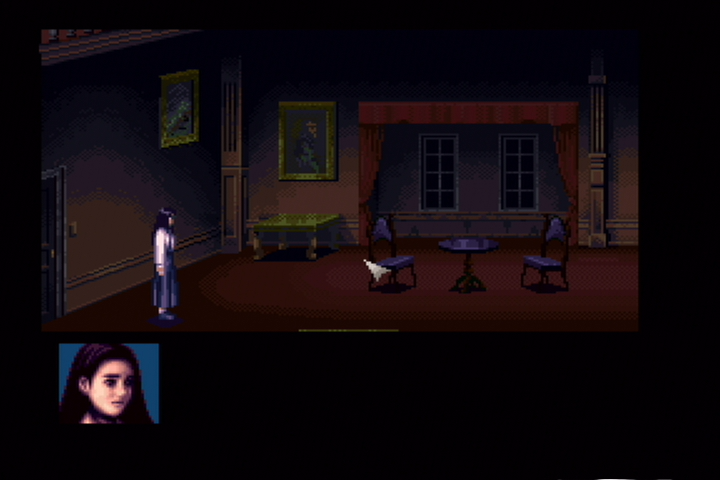
Again, we are back to the Clock Tower test to illustrate my point.

The top 2 are what I would consider "good" Component capture. Click to enlarge all pictures.

Blackmagic Shuttle
Live Gamer Extreme
Live Gamer Portable
Notice that the colors are all wrong on the portable and pay close attention to the curtains and the floor. The gradients are completely lost, as is detail.

Of course Component is converted to HDMI for passthrough which is lagless as far as I can tell, other reviews say the same thing. I did hear reports that sometimes the passthrough will go black for a couple of seconds but I didn't experience it on this particular unit. I have however seen other units exhibit this problem. It only seems to effect Component video though, most notably the Wii.

Microphone/headphone ports

Didn't bother to test the microphone port since nobody should ever use it. I did however play around with the headphone port and it's actually really nice. To have a port so close to you instead of having to constantly plug the headphones into the back of my monitor is amazing. I wish more manufacturers would do this and it's definitely a plus point for the device.

Preview latency and lag

I was very surprised by the preview latency for a USB2 device. The latency was around 8-9 frames on my laptop. Not good enough to do any serious gaming on but probably fine that you wouldn't need to delay your microphone when live streaming.

I do however have a pretty big issue left to discuss. When watching the preview, it dropped a lot of frames. For example, I made Ryu do a jumping roundhouse kick on Dan (Super Street Fighter IV) and the preview window of XSplit completely missed the whole animation of his kick. He jumped and then suddenly he was on the ground. The significant frame drops seem to happen every 30-40 seconds that it's a real problem when live streaming as your viewers will see this. I should note that the passthrough is perfect and does not exhibit any of these issues.

I actually thought it might be a problem with my USB3 ports but I plugged in my Elgato and that was perfectly fine and I saw no frame drops.

Conclusion

A pretty decent try from AVerMedia with some cool features but the bad Component capture along with constant frame drops on the preview makes this product very hard to recommend. If you are in the market for a USB2 solution, I'd highly suggest the Elgato Game Capture HD over this.

Friday, 10 July 2015

AVerMedia Live Gamer Extreme GC550 Review

November 2016 Update: The frame rate issue has now been fixed, the card can now properly record 59.94 content.

Let's see what AVerMedia's latest product has to offer. I've never really been a fan of AVerMedia but let's give them a second... no third try.

Package and Contents

First a picture of the outer packaging. Click to enlarge all pictures.


Nothing too amazing here compared to some other products I've seen but it doesn't really matter what it looks like. I'd be happy with a plain white box. The side also tells us the contents.


Package Contents:

Live Gamer Extreme Capture Card
USB 3.0 Cable
3.5mm Audio Cable
HDMI Cable
Component Breakout Cable
Component to PS3 Cable
Quick set up guide
Backup screw and Exclusive cover

That last one... yeah I don't know what they are thinking here. I don't want to print out a design and put it in my capture card. I want to you know... play and capture my gameplay. As you can probably guess, this device will capture HDMI and Component video.

Installation

The installation was rather easy. Just download the latest software and drivers from AVerMedia's site and then click past a wizard. It's then just a case of plugging in the USB3 cable and after about 10 seconds, the device will be installed and ready for use.

DirectShow layout and options

When I first learned about the device I was really confused if it was DirectShow or not but fortunately I can confirm it is. However, this leads us to the first big problem with the device. This is what AmaRecTV provides us in the Device tab configuration.


We're stuck at 60.00 fps and you cannot change this as AmaRec will spit out errors. It's pretty common knowledge that all HDMI consoles output 59.94 and nothing else. The only thing they got right here was using YUY2 sampling. The selection does not change when you choose Component either.

Clicking Device Setting brings us the DirectShow interface.


Here you can select video input between HDMI and Component as well as mix in the audio sources from aux or microphone. You will however notice that changing HDMI range levels is not selectable here. In order to change between 0-255 and 16-235, you must do it in the RECentral software and then this setting will stick when you reopen AmaRecTV. Not the most elegant solution but it works. I'd like to see the color range selectable on the DirectShow interface for future updates.

USB3 Capturing, preview and latency

I think USB3 capture cards have gotten a bad name from the Blackmagic Shuttle but don't let that put you off buying another brand. I am pleased to say that this device handles 1080p60 without any frame drops or lagging. The fps view display in AmaRec is a tad more erratic than I'd like, but still decent. It will hover between the ranges of 59.88 and sometimes go up to 61.

The preview is described as "Ultra-low Latency" but watch this video I put together.


That's definitely not ultra low. What is weird is that the RECentral software is much laggier than the AmaRecTV preview, by about 2 frames. The approx 2 frames of AmaRecTV is acceptable to describe as low but I personally would not call it "ultra low".

RECentral 2 Software

The RECentral 2 software is pretty bare bones and I personally don't like it as they give the user too much customization. For example, you can capture a 480p source at 1080p and select a configurable frame rate. You should always capture native res and framerate which AVerMedia is not enforcing here. This will always lead to the end user making mistakes or forgetting they set 720p when they were capturing a 480p source. I should also state that 59.94 is also not an option here.

You can however record upto 60 Mbps and AAC up to 256 kbps. No idea why manufacturers don't want us to go to 320 kbps with audio but it's probably because 256 kbps is good enough for stereo sound. The only container format you can choose is mp4 which I have no issue with. Gives great compatibility with almost every editing program and you shouldn't have any problems. It is however limited to YV12 which I guess I can't blame them for.

Another review said the software was constantly crashing but I didn't get one crash and was always stable. Might have been user error or operating system/hardware dependant.

HDMI capture quality

It's HDMI... it's supposed to be good. No complaints here besides color range being awkward to select as mentioned previously. Would also like 59.94fps selectable in the future updates.

Component capture quality

I'm actually very surprised to say the quality is far better than I expected, especially after the abysmal quality of the H727E. It's definitely on par with the other top cards out right now like the Elgato and Micomsoft. Here is Donkey Kong Country 480p from the Wii Virtual Console with the top 3 cards. Apologies for not the same frame but you get the idea.

AVerMedia GC550
Elgato
Micomsoft
When evaluating Component capture, I always like to do a test I call "The Clock Tower". It's the beginning scene I've spent the most time analysing over all the cards I've ever owned.

AVerMedia GC550
Blackmagic Shuttle
As we can see, the AVerMedia is pretty much identical to the Shuttle which we know to be correct. These screenshots are the closest to the emulator colors you will get. I actually might go as far to say the GC5500 is the best Component capture solution.

I should also note here that the Component to HDMI passthrough is lagless as far as I can tell.

Heat

After about an hours use, the card got pretty hot at the base. It wasn't so uncomfortable you couldn't keep your hand there but I'll need to do a thorough test of 5-6 hours use to know if it will cause any problems over longer sessions.

Extras

I know this is a rather short review but I just wanted to get the main points down. I could write an extra page or so evaluating other stuff but I don't feel the need when it can't even get the basic functions correct.

Conclusion

It's not a bad effort from AVerMedia and your casual user probably doesn't even care about the problems I listed. If you're just looking for a good external capture solution, I'd probably recommend picking this up. However, if you really care about getting correct frame rates and ease of use, I'd look elsewhere or at least wait till the drivers and software are updated to fix these issues... if they ever are. Even if it is the best Component capture solution, doesn't mean anything if your frame rates are wrong.

I will say that the price is very appealing and might sway some users into buying it. I was able to pick this up from Amazon for £110. That's pretty crazy for a YUY2 1080p60 solution.

Friday, 9 January 2015

StarTech USB3HDCAP Review

Update for April 2015: Thanks to charliecharlo on the shmups forum who discovered you can actually use the Micomsoft drivers with this device. It should fix all the issues I described in this review and I'd highly recommend this capture card if you don't need the passthrough or can't get an internal card.

Update for May 2015: I've compiled a modified driver for this device that uses the latest Micomsoft drivers. I thought it was silly making everyone do the same thing by just having a tutorial.

Download is here from Google Drive.

It includes a readme.txt but I'll copy/paste it here also.

Release and readme by: TheThrillness
Credit for figuring this out: charliecharlo

What is this?
This is a preconfigured driver that will allow you to use the Micomsoft drivers with the USB3HDCAP.

What changed?
I copied the [ENTRY] and [ENTRY.NTamd64] sections of CY3014.INF from the Startech drivers to the Micomsoft drivers (charliecharlo's idea).
I did this for both 32 bit and 64 bit operating systems but most likely you only want the 64 bit folder.

Do I just install these?
There is more steps depending on your situation.

1. Uninstall any existing USB3HDCAP drivers using Device Manager. (It's under 'Sound, video, and game controllers') - Obviously only do this if you have ones lying around.
2. Restart your computer and allow it to install unsigned drivers.

Windows 8.1 guide: http://revryl.com/2013/08/06/install-unsigned-drivers/
Windows 7 guide: http://en.kioskea.net/faq/3914-windows-7-how-to-install-unsigned-drivers

3. Use DPInst.exe in the Micomsoft drivers and allow installation when Windows warns you.

Why do I want this over the StarTech one?
Many bugs were fixed. Ones I have identified:

1. 0-255 and 16-235 levels switching actually works.
2. The NTSC_M_J video filter (and others) now work. This gets you correct black level for retro consoles when capturing over Composite/S-Video.
3. The 100% CPU bug is now officially fixed in these drivers (only for Windows 8). Yuan originally fixed this in the 2013/11/8 drivers but only for one power plan.
More info here: http://www.thethrillness.com/2015/02/micomsoft-100-cpu-bug-fixed.html

Original review below:

The joys of getting and reviewing new capture hardware... hooray!


Let's go over the package contents:

1. The device itself
2. A very short USB3 cable
3. Composite/S-Video breakout cable
4. Component breakout cable
5. VGA to DVI adapter
6. Software/driver CD
7. Instruction booklet

Installation is as easy as it gets. Install the driver and connect the USB3 cable. You will be greeted with what I would say is a slightly too bright LED to confirm the device is powered on and working. The driver confirms that it was written by Yuan.

The first thing I wanted to check was the claim of 1080p60 as this is the primary selling point of the unit. Let's connect the 360 up via HDMI and open AmaRecTV.

Click to enlarge
I played for about 20 minutes and recorded multiple videos. I encountered 0 dropped frames. Click here for a 1080p60 4:2:2 encoded file using Yua.

Click to enlarge
I was really skeptical of this working. I've had really bad issues with the Intensity Shuttle dropping frames even with 480i content. I guess this just shows how bad the USB3 controller inside the Shuttle is. That thing couldn't even do 1080p60. This device takes 1080p60 and eats it for breakfast. The only small issue I noticed was that the display frame rate will sometimes dip below 58 fps. This is probably a slight data transfer issue with USB3. I've never encountered this with internal cards. They usually hit 59.88, 59.94 or 60.00.

One thing I was really curious about was if the device was a remodeled XCAPTURE-1 as it shares the same USB3 controller (CY3014) and driver window. In video quality I can confirm it matches the other Micomsoft products but weirdly, the Micomsoft drivers for the XCAPTURE-1 will not work with this device.

I then went on to capture my SNES via SCART RGB/VGA and it functions exactly like the other products. I wanted to confirm it was properly handling 240p over Composite/S-Video (which it does) but I ran into an issue. I'll need this video to help me explain.

Basically, the NTSC_M setting has the wrong black level for older consoles. Setting it to NTSC_M_J is the correct option. However, this particular driver is not properly storing the change and it reverts back to NTSC_M. You're stuck with NTSC_M for everything.

Another issue I've found is that the color range option (0-255 and 16-235) in the driver does absolutely nothing regardless of connection. It's only really a problem for HDMI but it does mean the device is only currently capable of accepting and processing 16-235 source material. 0-255 will get crushed. The actual Micomsoft drivers do not have this issue so I wish they worked here.

The last thing I want to talk about is input delay/preview window lag since the device lacks pass through. I connected the device to my graphics card and opened it up in AmaRecTV. I've put one timer (WSplit) on the capture card feed and the other (LiveSplit) on my main desktop. I've configured both programs to respond to a global hotkey of pressing space to start each timer. Just a quick way I thought of to test it. Click to enlarge each picture.

1080p60 YUY2:


I wanted to see if changing the color space made a difference:


It sort of did. What about setting the capture card to 720p?


Setting the capture card to 720p gave a seemingly perfect lagless result but I wouldn't trust my crude tests. The message here is that it's fine for casual gaming but if you are speedrunning, you definitely do not want to play from the preview window which means investing in splitters and the such.

That about wraps everything up. Would I recommend this? Probably not. The only target audience I see for this is people who already have all the different splitters or just want lossless 1080p60 without having to import other products from Japan. Even then the bugs I mentioned means this product has very few practical applications and if you just want 1080p60, the AVerMedia C710 is maybe a better alternative (also cheaper).

Tuesday, 24 June 2014

Raphnet SNES to Wii Controller Adapter Review

raphnet snes wii controller adapter
Image courtesy of raphnet-tech.com
I got this adapter as I hated the Gamecube controller for VC games such as the Donkey Kong Country series (button layout sucked). As for the adapter itself, build quality is solid overall but I'm not totally sold on the actual circuitry part. It seems to be covered with insulation tape and that's it. I feel like if you unintentionally stepped on it, you would have a chance of breaking it. As long as you are careful, you should be fine. I have actually used the adapter for about 8 months now and never had a problem.

I can now play all my SNES VC games properly and I could not be happier. I can't detect any input lag which is a good sign. There obviously must be some added but it's so minuscule you would never notice it.

The adapter will set you back about $36/£21 (including shipping). Is that good value for what you get? Well if you love your VC games and want an authentic experience, it probably is worth the money. Since the Wii U is also getting a Gamecube controller adapter very soon, there is also a possibility to use this product with the Wii U without having to drain Wiimote batteries which would be really nice.

Friday, 20 June 2014

Elgato Game Capture HD Review


Elgato Game Capture HD Review
Elgato Game Capture HD - Image courtesy of Amazon.com

A big thank you to Elgato for supplying me with a review unit.

I've always used DirectShow capture cards, so I was really not sure what to expect from this device. First, let's talk about the contents:

1. The unit itself
2. USB cable
3. PS3 Component cable
4. Component breakout cable (the same one that is bundled with the StarTech PEXHDCAP if you are wondering)
5. HDMI cable

The PS3 Component cable is a nice addition. This stops you having to buy official Sony cables. The breakout cable will allow you to connect any Component system to the Elgato. You can also attach Composite to the red connector but I'd highly recommend moving to S-Video for retro systems. In order to capture from S-Video, you will need to purchase the Analog Video Adapter from the Elgato Store.

One of the best features of this card is the lag less pass through when using Component to HDMI. I am able to input my Wii at 480p Component and output 480p over HDMI without lag. This stops the need of having to buy Component to HDMI converters or messing around with those Wii2HDMI adapters. You can also power the Elgato from any USB port (on a TV for example) so it's also a great option if you just want a Component to HDMI converter. If I did have to make one criticism of this, it would be the lack of a dedicated Component adapter for the Wii like the PS3 has. This is probably superfluous to requirements due to the Wii U but users who don't want to spend money on buying a new console might feel a tad annoyed.

I downloaded the latest drivers from Elgato's website (as of writing 1.42.23) and connected the unit to a USB port. That was pretty much all the setup process entailed. I was really skeptical about how well a YV12 4:2:0 encoder would match up to what I had been using. My previous capture setup involved 4:2:2 Lossless capture via Lagarith or UT Video.

While configuring the device for 720p capture, I noticed something interesting. If you have the "Preserve Source Format" option ticked, you can happily record a maximum 26.3 Mbps at 59.94 fps. However, untick this option and you are left with a maximum 15.0 Mbps at 29.97 fps. I am all for being able to record at 29.97 (let's face it most of the games on PS3 and 360 are all 29.97 anyway). I don't see the reason for substantially lowering the bit rate though. They should keep the 26.3 Mbps option for 29.97 fps content. Let me explain why this would be a good idea.

Here is a raw BMP file with 59.94 fps: Click
Here is one with 29.97 fps: Click

As you can see the 59.94 capture is clearly better. The 29.97 is much more "blocky" (especially the bottom left side of the tree leaves). If they allowed you to allocate 26.3 Mbps for 29.97 content, it would look even better than the 59.94 video since the bit rate isn't being allocated over as many frames.

The 1080p capture option is very nice. A 1080p 59.94 source is recorded at 29.97 with 30.0 Mbps. I forgot how great 1080p video looks on my TV as it's always been at 720p. Since the Elgato can be pushed to 30.0 Mbps, the user should be able to select the maximum 30.0 Mbps for at least 720p. Even 480p is limited to 15.0 Mbps. I would like to see that lifted to 20.0 Mbps so a consistently high quality file can be captured even in very high motion game play. Regardless of capture bit rates, it is nice to see that the Elgato correctly captures HD colours (Rec. 709). The device also properly handles 16-235 and 0-255 video which very few DirectShow capture cards actually do.

In comparing the capture quality to something like the Blackmagic Intensity Pro (HDYC UT Video Lossless), you can see some very slight degradation in quality with the Elgato but it's hardly anything to complain about (since the bit rates are substantially less).

Blackmagic BMP: Click
Elgato 26.3 Mbps BMP: Click

I am more than happy with the capture quality of the encoder but as said above, I'd like to see the bit rates slightly increased.

Now let's talk about interlaced content. I connected up my SNES and was told that the capture would be 720x480i at 59.94. This is completely wrong. It should be 720x480i at 29.97 (weaved capture). If you untick the "Preserve Source Format" option, the software will capture a deinterlaced 640x480 image at 29.97. This is also wrong as then you would be losing half the frames (old systems are actually 60 fps). I can see why they probably did this though. Most people won't care as it's only if you would be submitting a run to SDA would you ever need the full 60 fps. If you want to use this device with interlaced content/retro games for SDA, you should look elsewhere. Don't get me wrong, it still works with 240p material, just other devices handle it better.

If the above issue does get fixed, there is also another problem with Composite and S-Video in the black levels. The capture filter for the Elgato looks to only support the basic "NTSC_M" (USA at 7.5 IRE). This is a problem because many retro consoles such as the US SNES are just basically Super Famicom (NTSC-J) consoles. This is why you can play Super Famicom games in a US SNES. Since these are NTSC-J consoles, they also output the black level at NTSC-J standard (0 IRE). This could be fixed by giving an option to choose between 0 and 7.5 IRE when the user selects Composite or S-Video (put it in place where the user selects between Standard and Expanded for HDMI).

The last thing to talk about is live streaming. Since the Elgato has native XSplit and OBS support. it's easy to set up and get going. Due to the preview delay, I had to delay the microphone to match the game. I got it to sync up with my microphone at a setting of 1400ms. This seems like the standard to use from videos and tutorials I watched.

Everything works well with the live streaming. However, speedrunners have extra issues to contend with. Ideally we want to capture a high quality local recording and live stream at the same time. There is currently no way to do this with the Elgato. The only workaround would be to local record in the Elgato software and then screen capture the preview window inside XSplit or OBS. That's not exactly a good solution, especially if screen real estate is a problem. I would really like a way for the Elgato to work similarly to AmaRec's Live feature where you take a DirectShow source that can then be added to as many applications as you want while still being able to record in the software itself.

Showing timers/splits on stream is also another problem. Not only will you have to sync up a microphone, but you also have to delay the timer in WSplit (or similar program). If you are curious how to do this then right click and go to Configure in WSplit. For start delay input something along the lines of 1.4 (aka 1400ms to make it the same as the microphone delay). A big thanks to SDA user Vid3odrome for the solution to timing splits and the Elgato together.

There is also a slight issue with editing the files. The .ts files can be imported into programs such as Sony Vegas but they have no sound. The included MP4 converter fixes this and won't touch the quality. However, I noticed a peculiar issue with the frame rate detection in Sony Vegas. It is detected as 59.908 fps (this should be 59.940). This isn't a big problem but I would definitely like Elgato to check this one out in case video/audio sync becomes a problem for very long recordings. I also tried other Elgato MP4 recordings and they also seem to slightly deviate from the standard 59.94 detection in Sony Vegas. I should also note that if you are using SDA's encoding program (Yua) then you only want to feed it the MP4 files as even the frame rate of the progressive .ts files are not being properly encoded.

I also discovered what I can only assume is a bug. The HDMI pass through can be toggled between Standard (16-235) and Full (0-255) in the Elgato software. However, it always defaults to Full on power up. This can be fixed by opening the software but the problem is if you close the software, the pass through goes back to 0-255. The only way to keep the pass through in 16-235 mode is to keep the software open. I hope Elgato can fix this to where the software "remembers" the 16-235 choice on exit or even when it is powered up.

That's pretty much everything I have to say on this capture card. Even with the issues I mentioned, it's a really stunning unit. Highly recommended if you want to use progressive content and hopefully the points I raised can be fixed in a future software update.

Friday, 7 February 2014

Neoya Wii2HDMI Review - Component vs HDMI

With the release of the Wii U, devices such as Neoya's Wii2HDMI see little use.

neoya wii2hdmi adapter dongle

However, this device still serves two key uses:

1. The Wii U dropped Gamecube support so this is still a down and dirty way to play your Gamecube games over HDMI.
2. Like me you probably have no need for a Wii U yet. Having the ability to hook all your current gen consoles over HDMI is a big plus.

There are many different versions of the Wii2HDMI adapter. The Neoya one stands as the best since it doesn't upscale to 720p/1080p like the others and any input lag created from the analog to digital conversion seems non existent.

I want to spend the rest of this review comparing the device to official Nintendo component video output. I'll be using the Micomsoft SC-512 for the best component and HDMI capture quality.

First up we have Super Metroid:

component vs hdmi comparison wii capture metroid
Component (Left) vs HDMI (Right) - Click to enlarge
Here's an overlay comparison.

Next we have Zelda: OoT:

component vs hdmi comparison wii capture zelda
Component (Left) vs HDMI (Right) - Click to enlarge
Here's an overlay comparison.

One more OoT for good measure:

component vs hdmi comparison wii capture zelda
Component (Left) vs HDMI (Right) - Click to enlarge
Here's an overlay comparison.

To round it off, Final Fantasy III:

component vs hdmi comparison wii capture final fantasy
Component (Left) vs HDMI (Right) - Click to enlarge
Here's an overlay comparison.

One more should be enough:

component vs hdmi comparison wii capture final fantasy
Component (Left) vs HDMI (Right) - Click to enlarge
Here's an overlay comparison.

It's clear to see that the HDMI output is moved up 1 or 2 pixels and shifted to the left by about 3 or 4 pixels. The HDMI output is also much brighter. For most people this won't be an issue and even if it bothers you it can be fixed in post processing.

Overall I give this a thumbs up. If you just want to HDMI your Wii, this is an easy purchase as you don't have to worry about external power. However, I would consider you look into the Lenkeng LKV5000 and similar as these are multi purpose converters that can work for different consoles.