Showing posts with label micomsoft. Show all posts

Sunday, 2 August 2015

Micomsoft XCAPTURE-1 Review

Let's take a look at the Micomsoft XCAPTURE-1


So if you have been reading my blog lately, you know I sold my SC-512. Why? I moved to a laptop so it was useless to me. The solution? The external version!

I'm in a picture taking mood so have all the pictures you could ask for. Click to enlarge all pictures.


The back of the box gives us information about the card. You might get lost if you don't speak Japanese but the basic principle is this: A USB3 capture card that captures everything from Composite 240p to HDMI 1080p at 60 fps.

Before we open the package, I'd like to discuss where to buy this and what the shipping is like. Currently the only place to buy this is Solaris Japan as the Yuan UB530 this is designed from is not an OEM manufacture and has been tweaked. The box as you can see from the pictures was slightly damaged but this is probably the delivery service.

Since most people are importing this and don't live natively in Japan, the customs charges should be discussed. I chose the 2-5 day option for delivery. As promised by Solaris, the item is dispatched within 24 hours but it took exactly a week to arrive as it was held up by customs. The total import charges was £40.00 (approximately $63). I chose a customs invoice of approximately £132 which was just inside the "Safe" declaration according to the Solaris website. The import charge itself was approx £20 but it's the VAT that bumps it up significantly.

So after evaluating the customs choice, I would use a value inside the orange (but closer to safe) so that you give the customs department something rather than nothing. They are likely to let something pass without question if they get a decent amount rather than getting nothing from a very low declaration like £20.00.

Now let's take a look at the inside.


On top is the instructions and an install CD including drivers and software. Never use this as it's out of date, get the latest from the Micomsoft website. Below is a picture of the unit itself after being taken out of the red bubble wrap.


For a size comparison, it's about double the size of an Elgato Game Capture HD.


The left side houses the USB3 cable which is of decent length. The right side contains 2 sets of Composite and S-Video breakout cables.


Most of my capture quality comments for this can be read in my SC-512 review but I'd like to discuss Component capture. I was very interested to see if the Component breakout cable supplied with the PEXHDCAP works and unfortunately it does not. The device will give a "No Signal" message.

Direct component does not work
Why is this? I have no idea. The original UB530 design supports this as indicated by the spec sheet and the USB3HDCAP also allows Component capture over the Composite/S-video port. I even went as far as replacing the Micomsoft entry inf files with the StarTech but this doesn't work either. It must physically not be linked to allow Component capture. Therefore, you are forced to purchase the D-Terminal to Component adapter cables.

Capturing HDMI - HDCP Enforcement

If you have ever captured HDMI before, you probably know HDCP exists and all HDMI capture devices need to enforce it. This device is no different.

However, you also know that HDMI splitters exist to bypass this. There is a weird issue I encountered when testing it. The self powered Lenkeng LKV312N that works with other cards such as the Elgato will not work on this device. It maybe has some higher level of HDCP enforcement that other cards do not have. This is kind of a let down so you'll need to buy one of the older 1x2 or 1x4 powered splitters for capturing HDMI PS3 content.

Drivers


Click to enlarge
The device is of course DirectShow compatible and uses the trademark Yuan layout. It's simple and effective. Choosing your video and audio input is as easy as it looks.

There is a lot of boxes and configurations but you don't need to worry about them. The only one worth talking about is Auto Resolution Scaling which scales an image to a specified resolution. This means you can input for example a 720p source and scale it to 1080p by choosing 1080p in the AmaRecTV device settings. I prefer to capture what I input at so this setting should not be enabled unless you really want it. Even then it's best to scale video in post processing.

Latency and preview delay

Let's look at the preview vs passthrough delay as I've been asked to look into this for future devices.

I have uploaded a video of what you can expect from this device.


It's approximately 3 frames but does slightly vary and gets closer to 2.5 frames at times. The Live Gamer Extreme was always 2 frames in 1080p mode using AmaRecTV but it's so close it shouldn't really matter. You can probably get away with playing via the preview window depending on how sensitive you are. Personally I feel its bad for any fast paced action or fighting games but anything else should be fine.

Should I buy this?

If you have a laptop then the choice of capture card is of course very limited. Desktop users should almost always look at an internal card unless there is very special circumstances where this is not feasible.

If we are being honest the only cards to consider for laptop users right now are the following:

1. Elgato Game Capture HD
2. Elgato HD60
3. Blackmagic Intensity Shuttle
4. Micomsoft XCAPTURE-1

I would have added the Live Gamer Extreme to this list but until AVerMedia understand what the words "correct frame rate" mean, I can't add it to the list. So let's think about our options here:

1. The Elgato is overall really solid but the USB2 connection might be troublesome for you, especially when live streaming and syncing up microphones with delay.
2. I'm not a fan of just a one input connection device and the statement in 1 also applies here.
3. The question is if you can even get it to work on your chipset. I'm pretty sure the inbuilt Windows 8.1 USB3 drivers fix most problems but it's still probably hit and miss. Not to mention the configuration is more than some users would be comfortable with.
4. Is there really anything wrong with this device? I guess having to buy D-Terminal adapters is a negative as well as extra cable mess but that's about it. It ticks every box you could ask for and is the closest match to the internal SC-512 that you will get.

Tuesday, 5 May 2015

Analyzing Micomsoft's Histogram Levels

I decided to look at Micomsoft's histogram using VirtualDub. I should have really done this sooner for the reviews but if I am being honest, I only really found out about how useful this could be yesterday.

In video capture terms, a histogram basically tells us how well the default driver is getting to our 16-235 levels and identifies any clipping. If we see any red, this means that the capture device is clipping those values and it's bad.

Let's start out with the basic HDMI connection. The card should be able to do this easily. The PS3 is configured to output Full range (0-255) and the driver has been configured to accept 0-255 input (shrink option). Click to enlarge all pictures.

0-255 captured at 0-255
As we can see, there is no red and the histogram is perfect. Now let's see what happens if we change the driver to accept 16-235 content (bypass).

0-255 captured at 16-235
As expected, we enter clip city. Let's now set the PS3 to Limited range and see what happens.

16-235 captured at 16-235
This just confirms that bypass is only acceptable for limited range content. There is a very slight clip in the low range but it's nothing to care about.

That was digital, we expect it to be fine. The real tests come from analog signals. I only had Component at hand via my Wii but I'll try and add others soon.

First of all we need to crop out the sides just in case we get bad 0-16 values. Here is the result for Component video set to bypass in the driver.


Don't mind the weirdness of the Wii video. It's an issue with VirtualDub as you need to select preview for the histogram to work properly. The screenshot shows what I would consider heavy clipping in the low range. Let's see what setting the driver to shrink does.


No clipping can be seen what so ever. It does look like we are no longer hitting values near 16 or 235 but it's a good start to manually adjusting the Proc Amp.

Thanks to Kadano for testing VGA: http://imgur.com/a/CfwC4#3

Current VGA recommendation is Bypass at Brightness 140, Contrast 140 and Saturation 140.

Tuesday, 24 February 2015

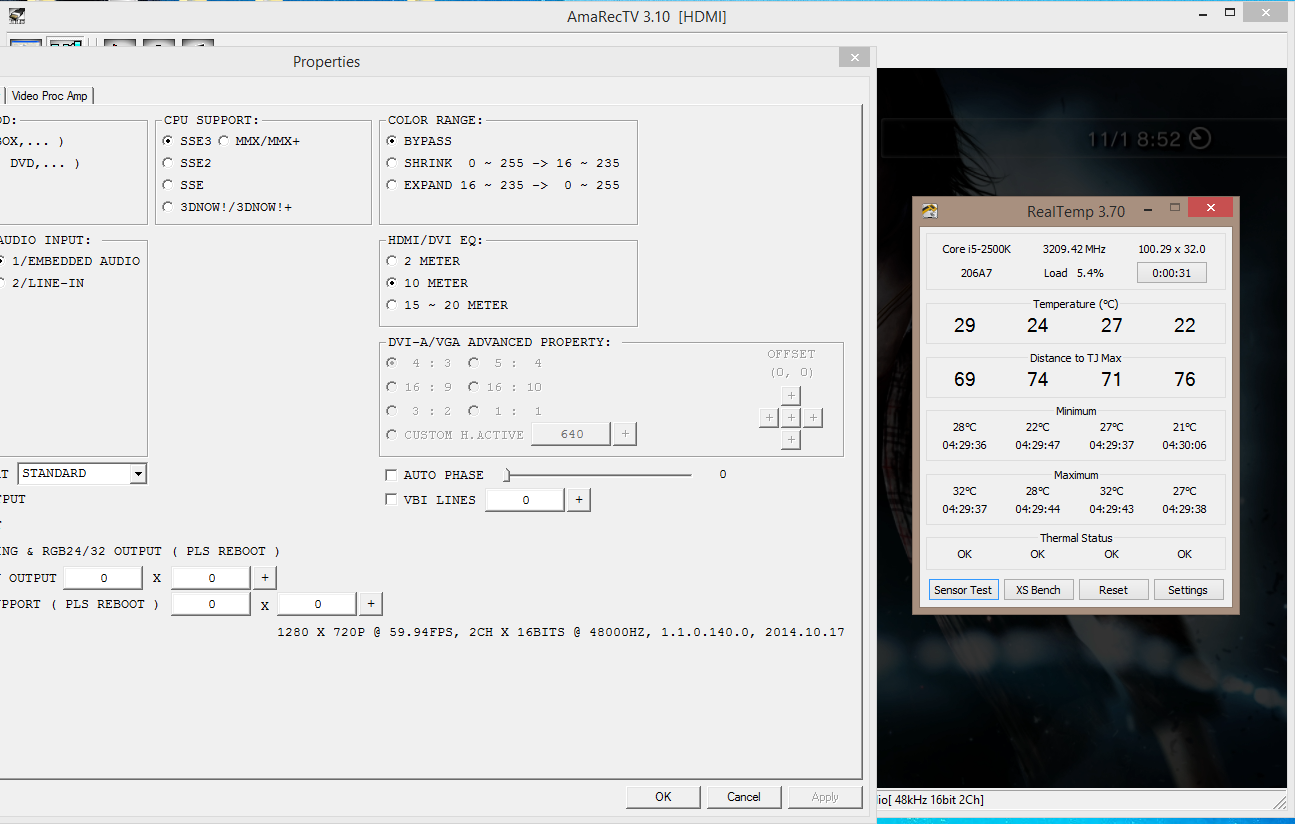
Micomsoft 100% CPU bug fixed

So this bug has been circulating for awhile now and yesterday I discovered the solution. It's not by any means a good solution but it works perfectly. Originally I thought it was to do with what motherboard settings or configuration of C states you had.

You have to update to Windows 8 and all your troubles will be over. Upgrading from 7 was not as difficult as I thought it would be. I'd highly recommend doing this though if you want to have the perfect capture setup.

Click to enlarge

Update for April 2015

So I decided to look back at this and do some more investigation. If we look back at the Micomsoft driver page for v1.1.0.124, we will see this entry.

Windows8使用時にCPU使用率(合計)が98~100%と認識されてしまう問題に対策しました。

Roughly translated, it means they identified and fixed the bug, but only for Windows 8. I guess we can't really blame them since they probably only develop on latest operating systems.

To see if this was true, I downloaded the previous driver where the bug should have still been present (v1.1.0.122). The below screenshot shows the bug active.


I then uninstalled that driver, restarted the system and installed Micomsoft's latest driver. It has now been fixed (you can check the PS3 clock if you want). :P


So yeah, just make sure you are running Windows 8 and the latest drivers. Either from Micomsoft or the Yuan VidBlaster ones and you should be fine.

Saturday, 21 February 2015

New Yuan/Micomsoft Drivers (February 2015)

Didn't even know Yuan had drivers available for download until today. I quickly checked them out here: http://www.yuan.com.tw/en/market/software/vidblasterdriver/vidblasterdriver.htm

The date is about 2 months newer than the Micomsoft drivers but from my testing they appear to be no cosmetic changes to the driver layout. The only changes from other sources seems to be that high data levels from 4:2:2 and 4:4:4 will no longer hiccup at 720p and multiple card support numbering has been fixed. I'll update this if I encounter anything over the next few days.

Friday, 14 November 2014

Micomsoft Driver Changelog (November 2014)

So days after I wrote about the small driver update from Lumens, Micomsoft come out with a driver that is 5 months newer! Since the Micomsoft website download was really slow for me, I've mirrored the download here at my Google Drive. These drivers work for the SC-500N1, SC-512 and PEXHDCAP. They also released XCAPTURE-1 drivers but I cannot test them as I do not have that capture card.

Here is the new driver window.


The eagle eyed user will spot 2 main differences: Color Range has been changed and HDMI/DVI EQ has been added.

I don't see much point in going over the EQ setting. You will never need to change this (default is 10). The most interesting (and only noteworthy) driver change is Color Range.

From my testing, the Bypass option works perfectly when dealing with a 16-235 source. However, with a Full range source the colors become much more vibrant and thus incorrect. In order to get proper Full range capture you must apply the Shrink option. I don't currently have the means to test VGA capture but I quickly checked Component capture. It seems correct to choose Bypass. Shrink made blacks look grey (as expected) and Expand looks like Bypass but no reason to pick it.

The only other small things to note is they added support for the X68000 and of course, the 100% CPU bug still exists. :(

Wednesday, 5 November 2014

New Micomsoft Drivers - XCAPTURE-1 users read!

Since Advantech rolled out the July 2014 driver for the internal cards, nothing else has surfaced for the Micomsoft products. They promised a new driver at CEATEC but nothing else has been announced. This is probably because they are focusing all their resources on the XCAPTURE-Mini.

However, today I found a driver slightly newer than the Advantech (127 to 128 revision). You can download it here. Lumens just looks to be a reseller company for Yuan products and others.


What is different you ask? Ummm... well nothing that I can see. All the problems I have documented previously still exist (100% CPU for Windows 7, 0-255 and 16-235 being swapped, bad RGB color capture). I also can't see any other options that didn't exist in the Advantech driver. Feel free to try it yourself and comment. Maybe I missed something.

The main reason I am posting this is for you XCAPTURE-1 users. My earlier suspicions were correct in that the UB530 from Yuan uses the exact same chipset and drivers as this device (CY3014 is the identification code). These drivers are about 7 months newer than what Micomsoft has on its website. Driver link here. Let me know how they work out for you.

Credit to achmetha who posted the XCAPTURE-1 new driver link on the OBS forums. It didn't take long for me to find the internal drivers.

Wednesday, 10 September 2014

Micomsoft/StarTech - 0-255 and 16-235 Capturing

One of my friends on the shmups and SDA forum (blizzz) was having some issues with full range captures on the SC-500N1. When I originally tested this, I was only concerned with getting limited range content to capture properly as my TV was limited to 16-235. After about 15 minutes I figured out what the problem was. The driver settings are labelled incorrectly. If you are capturing full range content, select 16-235. If you are capturing limited, select 0-255.


Additionally, selecting RGB capture in AmaRec is bad. The colors are completely off. Stick to YUY2 until a new driver is released to fix these problems.

Friday, 25 April 2014

Micomsoft/StarTech Driver Changelog (February 2014)

Micomsoft have not released a new driver since October 8th, 2013. I decided to do some hunting at StarTech and I got lucky. I checked the driver date and it was from February 2014.

Micomsoft StarTech Driver
Click to enlarge
So... what's new?

1. They worked with the SC-512N1-L and Composite/S-Video worked (even when the PEXHDCAP does not support this). I get the feeling these are somewhat universal drivers for Yuan products that will work for anything if the hardware supports it. This is probably why there is an SDI option even though it has never featured on any Micomsoft hardware besides the more expensive models from Yuan.

2. RGB support in Amarec at both 24 and 32 bit.

YUY2 Screenshot:

YUY2 Click to enlarge
RGB Screenshot:

RGB Click to enlarge
Both of those captured via Lagarith in the respective modes. The RGB capture is actually wrong in colors so stick to YUY2 until it is fixed. However, even if ti was fixed the difference in bandwidth for capturing lossless RGB vs lossless YUY2 is very significant. For the above scene, the bit rate peaked at 407 Mb/s on RGB but just 240 Mb/s over YUY2. I even doubt if 1080p60 RGB is possible with x264vfw.

3. Finally we can toggle between 0-255 and 16-235 (Do not ever use Enhance... you have been warned). For more information on this please click here.

4. NV12 and YV12 selectable in Amarec (although why would you want this when Lagarith/x264vfw can do it). If you do not know, these are 4:2:0 modes.

5. Some new ticky boxes like "SOG" which stands for Sync on green. I don't know much about this but it might be useful for some people. There is also a new "Auto" option which will auto detect a video signal and switch to it.

The driver version on StarTech's website was 1.1.0.5. The driver link is here. Just click the Drivers & Downloads tab.

The old 2013 Micomsoft drivers should be updated soon and you can check that here.

Tuesday, 4 February 2014

PEXHDCAP aka Micomsoft SC-500N1 Capture Card Review

A big thanks to SDA forum user Tranquilite who originally discovered that these capture cards were identical.

pexhdcap micomsoft sc-500n1
StarTech PEXHDCAP aka Micomsoft SC-500N1 - Image courtesy of Amazon.com

This will be a really short review as most of the points I make have already been said for the upgrade model. To put it simply, this is an amazing capture card.

You may not have or want to invest the money in the SC-512N1-L so let me go over what this card lacks compared to its bigger brother.

1. No 1080p60 support. This is simply because the card runs at Gen1 PCI speeds.
2. No Composite or S-Video support.
3. No pass through feature. It's back to the good old splitters and distribution amplifiers.

What some people might find good about this card is the inclusion of a proper HDMI input instead of relying on a HDMI to DVI adapter like the upgrade model.

If you actually think about it, you aren't sacrificing too much features in getting this capture card. Trying to capture 1080p60 in a normal scenario is still out of the question for most people. Ideally you would want to be capturing your retro consoles with SCART RGB so the lack of Composite and S-Video is not that big of an issue. If you already have splitters/amplifiers then you don't have to worry about the no pass through feature.

You basically have two choices here. Either buy the PEXHDCAP now or save that money and invest in the upgrade model at a later date. Both choices I highly recommend but it is up to you to figure out if the missing features of this model are going to hurt you down the line.

Thursday, 30 January 2014

Micomsoft SC-512N1-L/DVI Capture Card Review

Updates since the review was posted:

Check out the histogram for this card here. Current HDMI, Component and VGA capture settings included.

I get asked about locations to buy this card so here is a table which I'll try and keep updated.

Location
Available?
Price
Has passthrough?
All adapters?
Yes
$200
No
Yes
Yes
$229
 sintronusa does.
Misses the DVI to HDMI adapters
Yes
$287
Yes
Yes
Yes
$210-220
No
Yes

Also about the 100% CPU bug mentioned in this review, I eventually figured it out. Read more here.

Below is the original review with updates where necessary.

Micomsoft SC-512N1-L/DVI

First, let's talk about the video inputs of the card. Composite, S-Video and Component are handled by breakout cables. You will receive two of each (more on that later).

micomsoft breakout cables composite s-video component

DVI is inbuilt on the card while HDMI and VGA are handled by adapters. I should also note that the HDMI to DVI adapter also carries audio (only stereo sound is currently supported).

micomsoft hdmi vga dvi adapter

Connection wise, that is pretty much everything you will need. The card also operates at Gen2 PCI speeds so it is able to capture 1080p at 60 frames per second. It also supports 15kHz-31kHz over VGA which is very useful for SCART RGB capturing from retro consoles.

The driver is only compatible with Windows 7 and 8 but for most people that won't be an issue. The latest drivers can be downloaded from the official Yuan page here. The driver itself is one of the easiest I have ever used.

micomsoft driver

Choosing between the different video inputs is a breeze. The driver comes packaged with a program called VideoKeeper2 but don't bother to install this as much better alternatives are available. The driver is fully DirectShow compatible and Micomsoft even suggest that you use AmaRecTV. Of course this obviously means that the card works effortlessly with XSplit and OBS for your streaming needs. If you look at the driver screenshot, you will also see it has options for video deinterlacing. Although it is nice to have, I always set it to "Weave (None)" because it is typically better to deinterlace in post processing or use AmaRec's built in deinterlacer.

If you look at the capture card, you will notice it is a two slot design. The top slot is for video and audio pass through. Unlike the Blackmagic Intensity Pro, this is actually lag less and does not alter the image in anyway. This will save you having to use splitters or distribution amplifiers. This was a big selling point of the card for me as it cut down on my cable mess significantly. I will say that I can play perfectly fine from the preview window. Tests I've done show the preview latency is under a frame.

Now let's discuss the most important aspect of any capture card, the video quality. Luckily the YUY2 (YUV 4:2:2) color space is used so many of the best lossless codecs will work (Lagarith, Huffyuv, x264vfw, UT Video).

Update: I discovered that RGB capture is now available in the February 2014 driver. See the driver changelog here. However, RGB capture has some serious capture issues. Stick to YUY2 for now until it is fixed.

Below I will talk about each video input and give advice along with a sample video so you can see the quality for yourself. Due to bandwidth issues these have been slightly compressed. Please make sure your media player can play 4:2:2 encoded files.

Composite: This card has the best composite capture quality I have ever seen. This is probably because it has a 3D comb filter. There is little to no dot crawl and very little rainbow effect. One thing to note is choosing the correct black level for your console. Most of the time you want to go to the driver and select NTSC_M_J under the Video Decoder tab.

720x240 is supported over both Composite and S-Video but the capture frame rate is always 30 fps. You must capture at 720x480 and deinterlace to get the proper 60 fps.

micomsoft composite capture
Click to enlarge
Sample video here. AmaRecTV's retro game deinterlacer was used.

S-Video: The S-Video quality is amazing. Just like composite, this is the best S-Video capture I have ever seen. It actually makes other cards like the AVerMedia C027 a joke in comparison.

micomsoft s-video capture
Click to enlarge
Sample video here. AmaRecTV's retro game deinterlacer was used.

Component: The best thing about the component input is that it supports 240p. This means you can actually capture PS1 games on the PS2 using component video.

For my testing I used the Nintendo Wii with 480p Virtual Console titles. Lots of other cards mess up Component capture in some way, usually in brightness (e.g. AVerMedia). This card lacks somewhat in color reproduction over Component (reds lack vibrancy etc) and cards like the Intensity/Elgato are slightly better in this regard. However, to call the capture quality of this card bad would be a vast disservice. It's in the top 3 cards for Component capture.

micomsoft 480p component capture
Click to enlarge
Sample video here.

HDMI: Obviously amazing since HDMI is digital and you can't really mess it up. However, it has a feature that is missing on most other HDMI capture cards. You can also toggle between limited (16-235) and full range (0-255) capture. For proper 16-235 and 0-255 capture please click here. There seems to be a bug where if you are displaying Full range content you need to select 16-235 and for Limited you need to select 0-255. Maybe a mislabel in the driver?

Since most people are probably curious about it, I wrote a whole separate article on 1080p60 lossless capture. Due to bandwidth and playback concerns, I will just host a 720p sample.

micomsoft hdmi 720p capture
Click to enlarge
Sample video here.

VGA (SCART RGB): You will need a sync stripper like the XSYNC-1 or Sync Strike to capture SCART RGB from your retro consoles. There is a small issue with color shift when capturing from these sources. This can be fixed by ticking "Color horizontal Adjust" and setting it to Type-C in AmaRecTV's Advanced tab. I've made a screenshot comparison of Type-C on and off here. It's hard to see the difference from that comparison but trust me, use Type-C. I enabled AmaRecTV's scan line doubler for the screenshot (remember to choose 720x240 in the Device tab).

micomsoft scart rgb capture 240p
Click to enlarge
Sample video here.

The only thing that could make this capture card better would be the ability to capture Composite and S-Video at 60 fps while in 720x240 mode. This would bypass the need to deinterlace and you could simply use the scan line doubler. There is however one small issue that many users have reported from the SC-500N1 that also happens with this capture card. Whenever previewing video or just being in the driver, the C1 state of your CPU gets disabled which will increase the temperature until you leave the driver or the capture program. This can easily be fixed by going to the power options in Windows and resetting the power plan. It does get slightly annoying having to do this all the time though. Update: As said at the start of the review, this bug is now fixed.

If that feature was added and that small CPU issue was fixed, this really would be one of the best capture cards on the market. The card isn't exactly cheap (as of writing it's about $350 total).

In conclusion, if you do just want an all in one solution and want to forget about capture cards, get this and never look back. The Bugatti Veyron of the capture card world for people who want the absolute best.